
 By Alex John
 How to Delete a Facebook Page So you’ve decided it’s time to say goodbye to your Facebook page. Maybe your business has shut down, you’re rebranding, or you simply no longer want that online presence. Whatever the reason, deleting a Facebook page is a straightforward process — but there are a few things you absolutely need to know before you hit that final button.
This guide walks you through everything: how to permanently delete a page, how to unpublish it temporarily, what happens to your data, and how to recover a page if you change your mind. Let’s get into it.
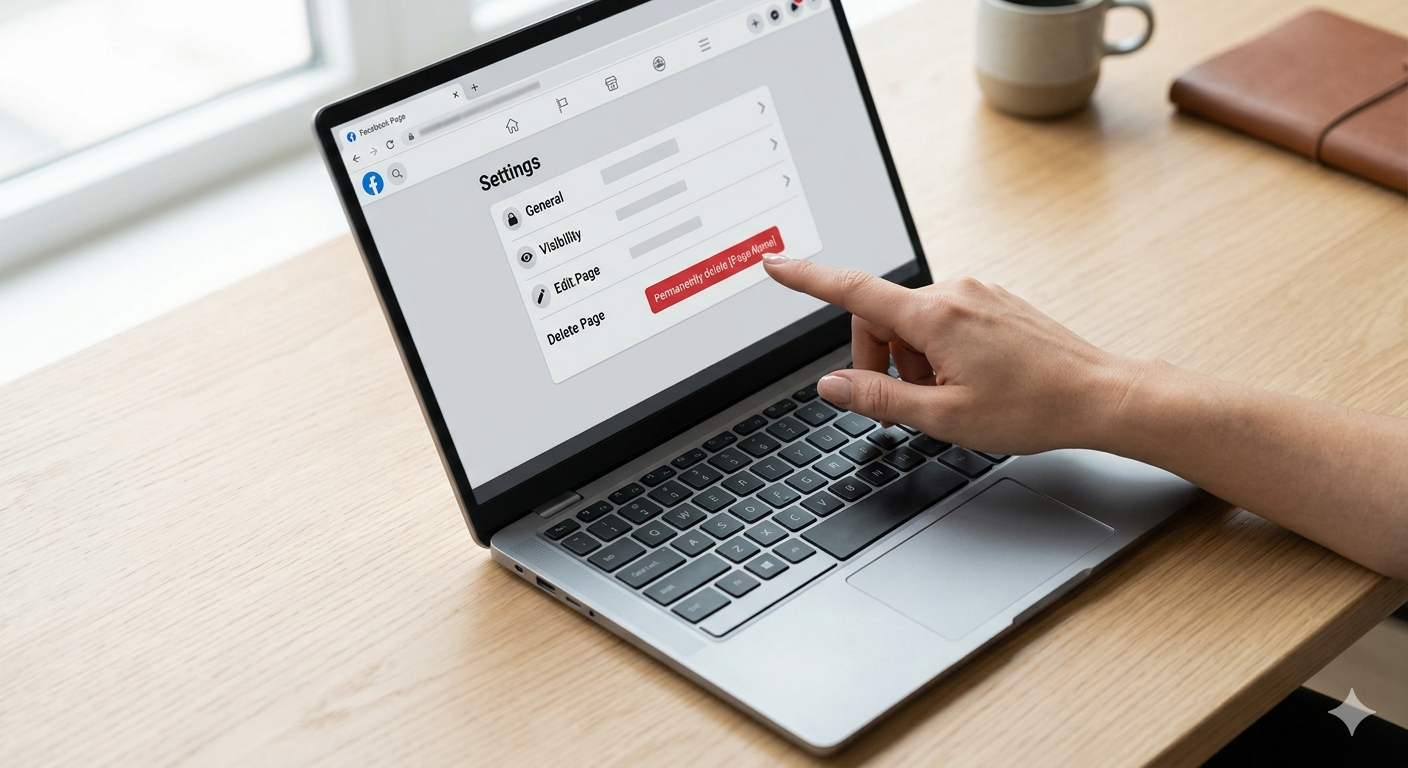
What’s the Difference Between Deleting and Deactivating a Facebook Page?
Before doing anything, it’s worth understanding your two main options:
Deleting a page means it’s gone permanently. After a 14-day grace period, Facebook removes everything — posts, photos, reviews, followers, and all associated data. There’s no coming back from this.
Deactivating (unpublishing) a page hides it from the public but keeps it intact on Facebook’s servers. You can reactivate it at any time. This is a good option if you’re unsure whether you want to come back later.
If you’ve made up your mind and want a clean break, keep reading.
Before You Delete: Things to Do First
Don’t rush. Take five minutes to handle these steps before you permanently remove your page.
Download your page data. Facebook lets you download a full archive of everything — posts, messages, photos, follower lists, and more. Go to your page settings, find the “Your Facebook Information” section, and request a download. It can take a few hours to arrive in your email.
Inform your followers. If your page has an active audience, it’s a good practice to post a final message letting them know the page is going away and where they can find you instead (your website, another social platform, etc.).
Remove other admins. You don’t want someone else accidentally reactivating the page during the grace period. Remove all other admins from the page before proceeding.
Disconnect any linked apps or tools. If you use third-party tools like social media schedulers or ad platforms connected to your page, unlink them beforehand to avoid errors on those platforms.
How to Delete a Facebook Page on Desktop (Step-by-Step)
This is the most reliable method to delete your page from a computer browser.
Step 1: Log into your Facebook account and navigate to the page you want to delete. Make sure you’re logged in as an admin.
Step 2: Click on your page name to enter the page view. From the left-hand menu, click on “Settings & Privacy”, then select “Settings”.
Step 3: In the settings panel, scroll down and look for “Page Setup” or go directly to “General” settings. You’ll find a section at the bottom called “Remove Page” or “Delete Page.”
Step 4: Click “Delete [Page Name].” Facebook will show you a confirmation popup explaining what deletion means and reminding you of the 14-day reversal window.
Step 5: Click “Continue” and then “Delete Page” to confirm your decision.
Once done, your page will be scheduled for permanent deletion. It will no longer be visible to the public immediately, but it won’t be fully erased until 14 days have passed.
How to Delete a Facebook Page on Mobile (iPhone & Android)
The mobile process is slightly different depending on whether you’re using the standard Facebook app.
Step 1: Open the Facebook app and tap the three horizontal lines (the hamburger menu) in the top right corner.
Step 2: Scroll down to “Pages” and tap on the page you manage.
Step 3: Tap the three dots (…) at the top right corner of your page screen to open the page menu.
Step 4: Tap “Settings,” then scroll down to find the “General” section.
Step 5: Scroll to the bottom and tap “Delete Page.” Follow the on-screen prompts to confirm the deletion.
If you don’t see the delete option, make sure you’re logged in as the page admin — only admins have permission to delete a page.
How to Unpublish (Temporarily Hide) a Facebook Page
If you’re not 100% certain about deleting, unpublishing is a smarter move. The page disappears from public view, but nothing is lost.
On desktop: Go to Settings → General → Page Visibility and change the status to “Page Unpublished.”
On mobile: Head to Settings → General → Page Visibility and toggle it off.
You can republish the page at any time by reversing this setting.
How to Cancel a Facebook Page Deletion
Changed your mind within the 14-day window? No problem.
Log back into Facebook and navigate to your deleted page. You should see a notification or banner saying the page is scheduled for deletion. Click “Cancel Deletion” and your page will be fully restored.
After 14 days, this option disappears and the page cannot be recovered.
Common Issues When Deleting a Facebook Page
“I don’t see the delete option.” You might not be the page admin. Check under Settings → Page Roles to confirm your role. Only admins can delete pages.
“The page says it belongs to a Business Manager account.” If your page is connected to Meta Business Suite, you may need to remove it from the business account first. Go to Business Settings, find your page, and disconnect it before attempting deletion.
“I deleted the wrong page.” If it’s within 14 days, you can still cancel the deletion by visiting the page URL and clicking “Cancel Deletion.”
FAQs About Deleting a Facebook Page
Does deleting a Facebook page delete the associated ad account? No. Your Meta ad account is separate and will remain active. You’ll need to manage or close it independently through Meta Business Suite.
What happens to reviews after I delete my page? All reviews are permanently deleted along with the page after the 14-day period. There is no way to export them through Facebook natively, though you can screenshot or copy them beforehand.
Can I delete a Facebook page I don’t admin? No. You must be an admin to delete a page. If you’re trying to report a page that impersonates you or your brand, use Facebook’s reporting tools instead.
Will deleting my Facebook page affect my personal profile? Not at all. Your personal Facebook account remains completely unaffected.
Final Thoughts
Deleting a Facebook page is a permanent decision, so it pays to be thoughtful about it. Download your data, give your audience a heads-up, and double-check that you’re not going to need that page again before confirming deletion.
If you’re simply tired of managing it right now, unpublishing is always a safer middle ground — it keeps everything intact while giving you the breathing room to decide later.
Either way, now you know exactly what to do. Go ahead and take control of your online presence on your own terms.